Transform
The Transform menu enables modifications to your asset’s geo-location, scale, and rotation.
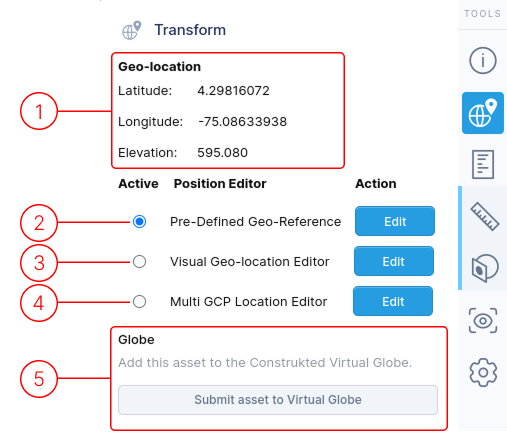
1. Geo-Location
Section titled “1. Geo-Location”This section displays geo-location information about your asset.
This information is hidden if you disable the “Display Terrain and Imagery” toggle in the Visual Geo-Location Editor.
Position Editors
Section titled “Position Editors”The “Active” column lets you select which set of settings to apply to your asset. The chosen option determines how others see your asset.
Each position editor saves its own data, allowing you to switch between various display methods for your asset. Click the “Edit” buttons to open a selected editor.
Three editors are available in the Transform menu, each serving different purposes:
2. Pre-Defined Geo-Reference
Section titled “2. Pre-Defined Geo-Reference”Only visible for assets that are uploaded with geo-reference information. It is assumed that the geo-location has already been determined in the software that generated the model, and it should not be changed. Specific details
3. Visual Geo-location Editor
Section titled “3. Visual Geo-location Editor”The main method of geo-locating your asset on the globe map. Also allows for correction of rotation and scale in case your model is not scaled and/or rotated correctly. Specific details
4. Multi GCP Location Editor
Section titled “4. Multi GCP Location Editor”Used to position the model on the globe map using multiple Ground Control Points. A minimum of three points are required. More are better. Only adjusts the geo-position and rotation of the model. Does not affect the scale of the model. Specific details
5. Globe
Section titled “5. Globe”This section provides information about the asset’s globe status.
Clicking the Submit asset to Virtual Globe will trigger review of your asset by a human to validate asset authenticity. Information will be displayed in this section informing you whether your asset has been accepted or rejected from the Construkted Virtual Globe.