Clipping Tools
Clipping tools for assets:
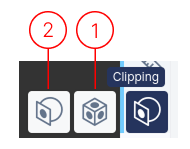
1. Clipping Box
Section titled “1. Clipping Box”Clicking a point on the asset places a cube that clips the asset to show only data inside. Adjust the cube’s sides to include more or less of the asset.
2. Clipping Plane
Section titled “2. Clipping Plane”First, choose how to create the clipping plane:
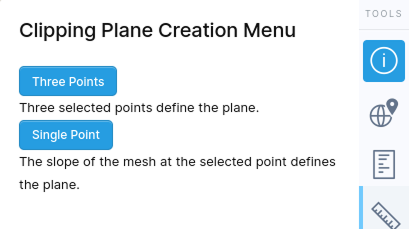
- Three Points: Click 3 points; a plane is fitted between them.
- Single Point: Click one point; the plane centers there and is parallel to local geometry.
After creating a clipping plane, you have these options:
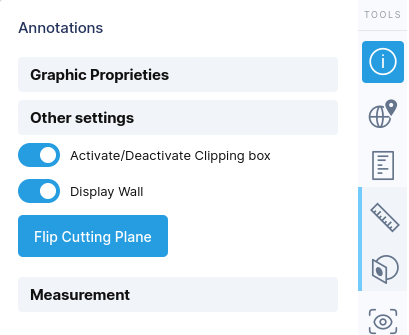
- Activate/Deactivate toggle: Controls whether clipping is active
- Display wall: Shows/hides the plane in 3D view
- Flip Cutting Plane: Switches which side of the model is clipped
Click and drag on the plane’s surface to move it through space while maintaining orientation.
Important Limitations:
Section titled “Important Limitations:”- Only one clipping box or multiple clipping planes can be visible at a time.
- With multiple boxes, only one can actively clip; others are deactivated.
- Activating a new clipping box deactivates all other clipping tools.