
Plans, storage, and payments
This content is a draft and will not be included in production builds.
Your Account Plan gives you storage and account features. Additional Storage adds capacity to a paid plan. They’re separate subscriptions, so each can have its own billing term and renewal date.
Open your avatar menu and choose Subscription to manage them. You can also open your Subscription tab directly after signing in.
What do the plans cost?
Section titled “What do the plans cost?”See the pricing page for current Account Plan prices, monthly and yearly billing options, included storage, and feature comparisons.
Additional Storage changes capacity only. It doesn’t add private projects or team members to a lower plan. Your existing subscription may have a custom price or allowance, so check its row in the Subscription tab before making a change. Checkout shows the amount payable for your order.
Buy or change an Account Plan
Section titled “Buy or change an Account Plan”- Sign in, or create an account from the registration page.
- Open Subscription from your avatar menu.
- If you already have a plan, open Manage on its row and choose Change subscription. If you have no active subscription, choose See the plans.
- On Account Plan, choose Monthly or Yearly.
- Select the plan. Your existing plan is marked Current when both its size and billing term match.
- Select Switch subscription, or the purchase button if you’re starting a subscription.
- Review checkout, including the amount due now, applicable tax, and recurring payment details. Complete the order using the payment control shown there.
- Return to Subscription and check your plan, storage allowance, and next payment date.
Changing the toggle or selecting a card on the Account Plan page doesn’t complete a purchase. If you see a notice that you already have a plan but no switch button, return through Manage. If the form still cannot offer a switch, contact support; don’t start a second paid plan. A change of billing term can also change the payment schedule. Read the checkout totals before confirming; don’t calculate a switch charge from the full monthly prices alone.
A larger subscription can charge the difference for the unused part of the current period. A smaller subscription takes effect immediately, and the amount already paid for the larger subscription isn’t refunded. Check that your files fit in the new allowance before reducing it.
How much Additional Storage can I buy?
Section titled “How much Additional Storage can I buy?”You can add 100 GB to 1,000 GB, in steps of 100 GB, to a paid Account Plan. You hold one Additional Storage subscription and change its size when needed. The amount selected is your total add-on capacity, not another purchase of that amount on top of your existing add-on.
See Extra storage on the pricing page for current monthly and yearly prices. Your total capacity is the storage included in your Account Plan plus your Additional Storage allowance. Review checkout for the amount due and applicable tax.
Buy Additional Storage
Section titled “Buy Additional Storage”- Open Subscription and choose Add storage in the Additional Storage row. The Account Plan page also has an Additional Storage panel.
- Choose Monthly or Yearly on the storage page.
- Move the slider, or select a size label, to choose the amount of storage.
- Check the size and price displayed above the slider.
- Select Purchase and complete checkout.
- Return to Subscription. The add-on appears below the Account Plan, and Total storage includes both allowances.
Free accounts need a paid Account Plan first. Buying storage doesn’t change your Account Plan’s billing term. If the two subscriptions renew on different dates, they’ll produce separate payments even when they use the same card.
Change storage size or billing term
Section titled “Change storage size or billing term”- Open Manage on the Additional Storage row and choose Change subscription. You can also use Change storage in the Account Plan page’s storage panel.
- Choose a different storage size or billing term. The slider opens at your current amount; Switch subscription appears only after you change the selection.
- Select Switch subscription and review checkout before confirming.
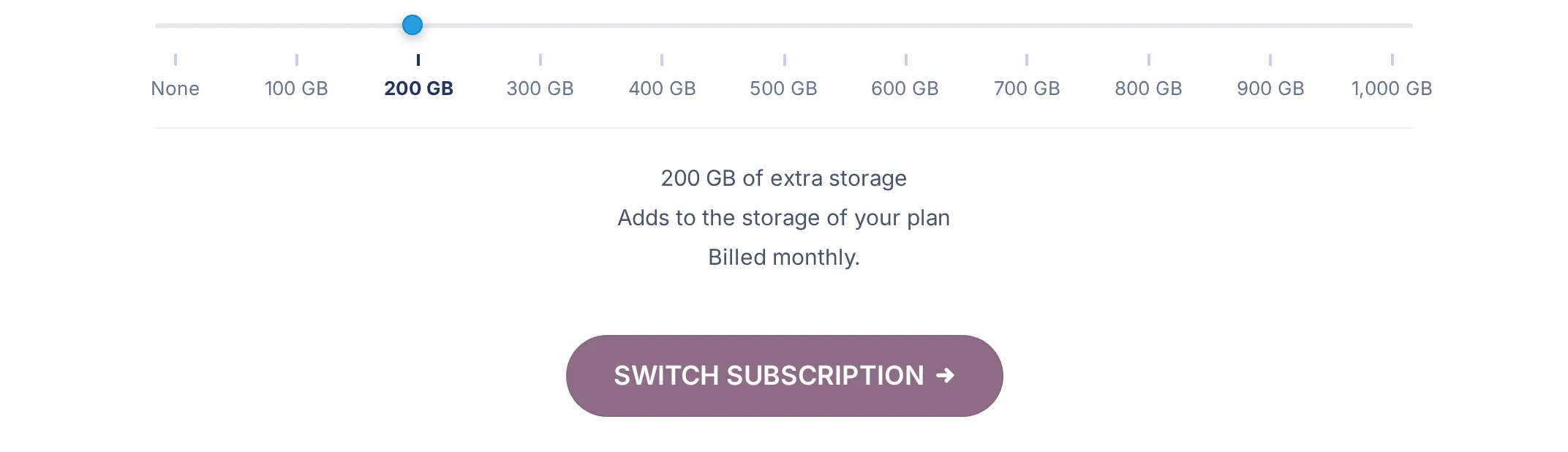
This test account currently has 100 GB. Selecting 200 GB reveals Switch subscription; selecting your current size and billing term again hides the button. Selecting an option alone does not change your subscription.
A size increase starts immediately and charges the difference for the days left in the current period. A decrease also starts immediately, without a refund of the amount already paid. A size change within the same billing term keeps the renewal date. You can also change only the billing term while keeping the same capacity; check the new schedule at checkout.
Read the Subscription tab
Section titled “Read the Subscription tab”Each active subscription, including one cancelled within its paid period, has a row with its Storage, Next payment, Status, and Price. The card used for a subscription appears under its next payment date when a card is assigned.
Total storage is the capacity you can use now. A single combined price appears only when the subscriptions have matching billing terms and currencies. The dates in the individual rows still matter.
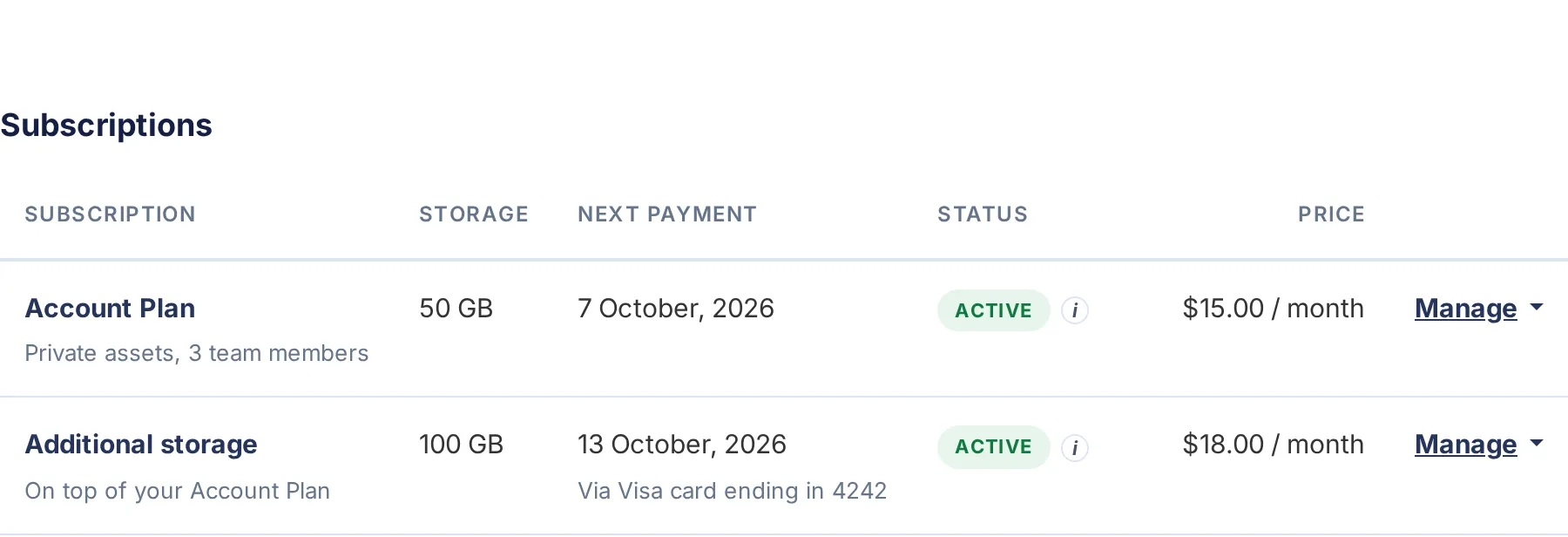
Open the i control beside a status for an explanation. Active means the subscription is running. Cancelled, ends [date] means renewal has stopped and the paid period continues until that date. A failed payment can appear as a notice above the table instead of a normal active row.
Add or change a payment card
Section titled “Add or change a payment card”The Payment methods section lists saved cards, their expiry dates, and the card marked Pays your subscriptions. One selected card normally pays the Account Plan and Additional Storage subscriptions together. Free plans don’t need a payment card.
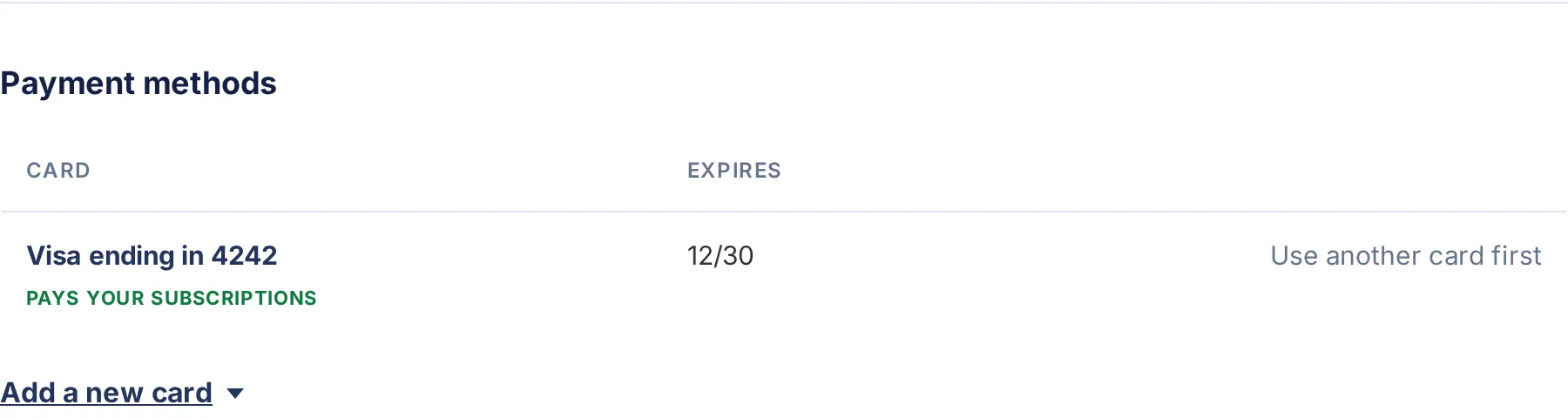
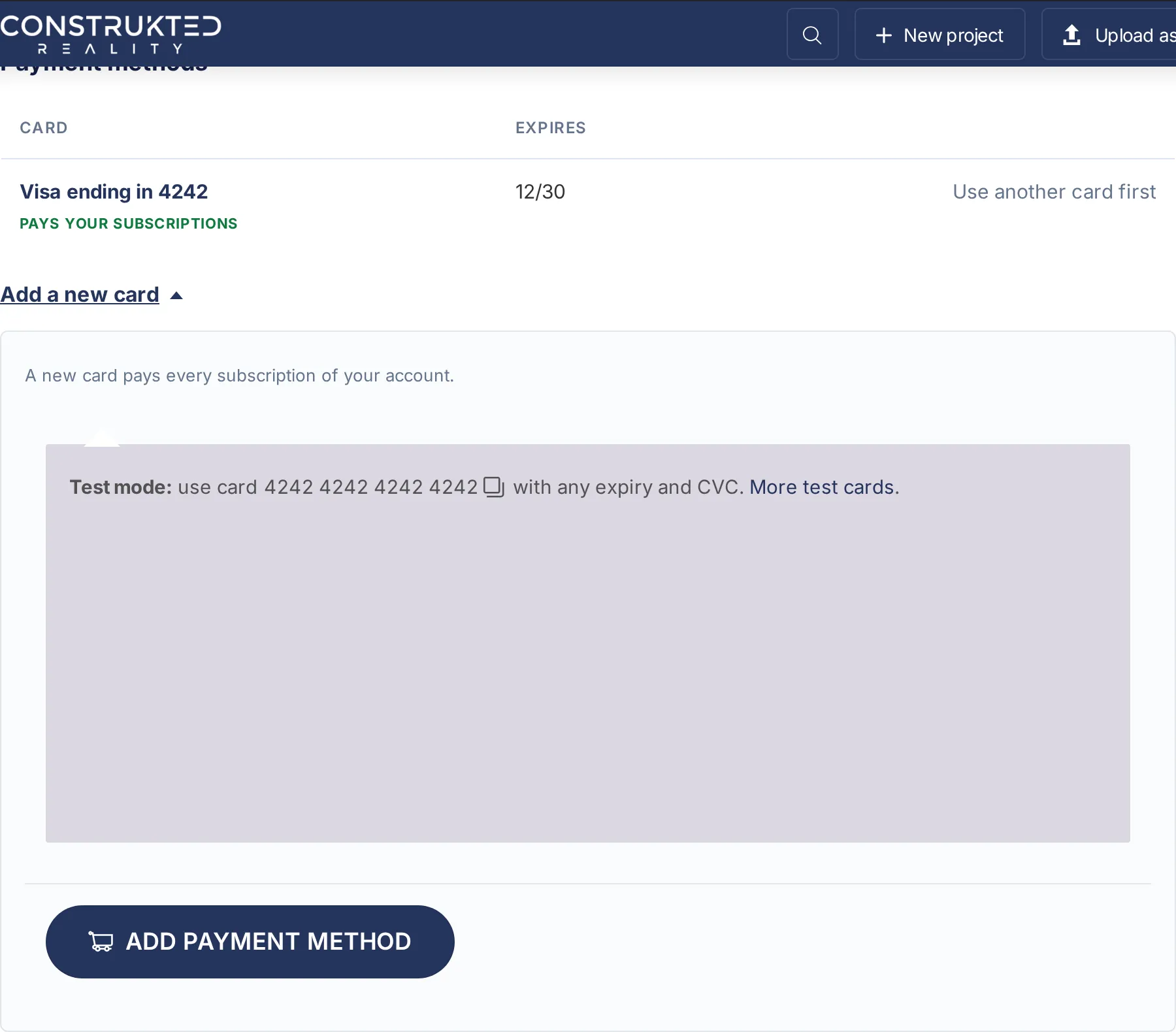
- Open Add a new card.
- Enter the card details and complete any verification requested by the card provider.
- Submit the form. The new card becomes the payment card for the account’s paid subscriptions.
- Check the Pays your subscriptions mark and the card shown under each next payment date.
To select another saved, unexpired card, choose Use this card beside it. This applies across your paid subscriptions, including subscriptions waiting for a payment. It doesn’t buy a plan or change your storage amount.
Use Delete to remove an unwanted saved card. A card that still pays a subscription may require you to use another card first. Read the confirmation if deleting a paying card: eligible subscriptions can move to another saved card.
If the page reports that a subscription has no assigned card, open its Manage menu and use Repair the card of this subscription when available. If that action isn’t offered, follow the payment-problem link or contact support. Merely saving another card isn’t a guaranteed repair for a subscription whose card assignment is missing.
Find payments and download an invoice
Section titled “Find payments and download an invoice”The Payments section appears when the account has qualifying payments. It lists the payment date, purchased item, amount and currency, and order number. Refunds are marked. Free orders don’t appear as payments.
- In Filter, select the first and last day of the period you need.
- Select Apply filter to review the matching payments.
- Under Export payment list, choose A4 (Europe) or Letter (North America) if you want a PDF.
- Select Download PDF, or Open in a tab for the web version.
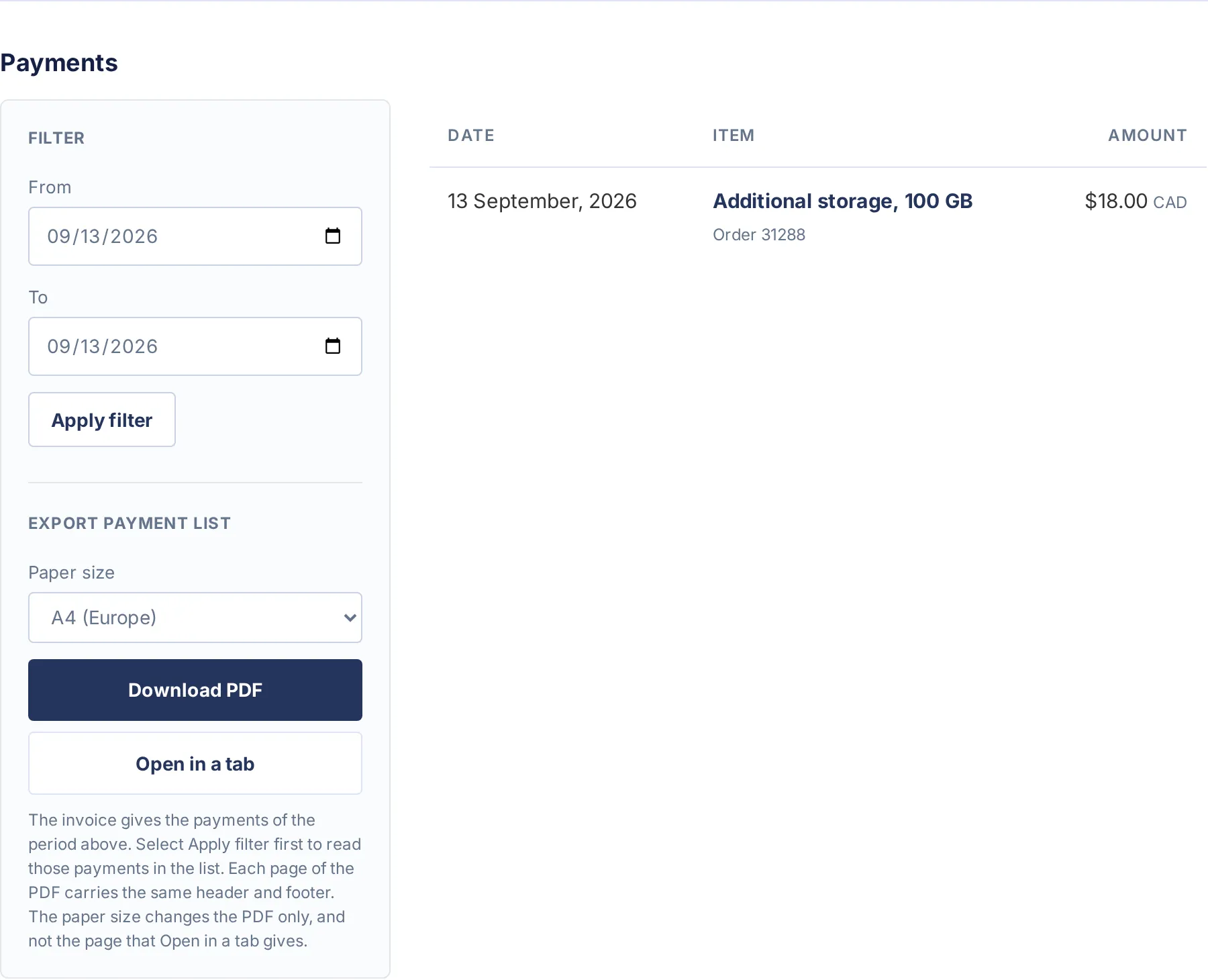
The period includes both selected days and uses the store’s timezone. It selects the day you paid, which can differ from the day you placed the order. The exported document lists the purchased items, discounts, taxes, refunds where applicable, and totals for that period.
Payments in different currencies have separate totals. Don’t add those totals together as though they were the same currency. The billing address comes from the most recently created order in the selected set; it’s not necessarily your current profile address.
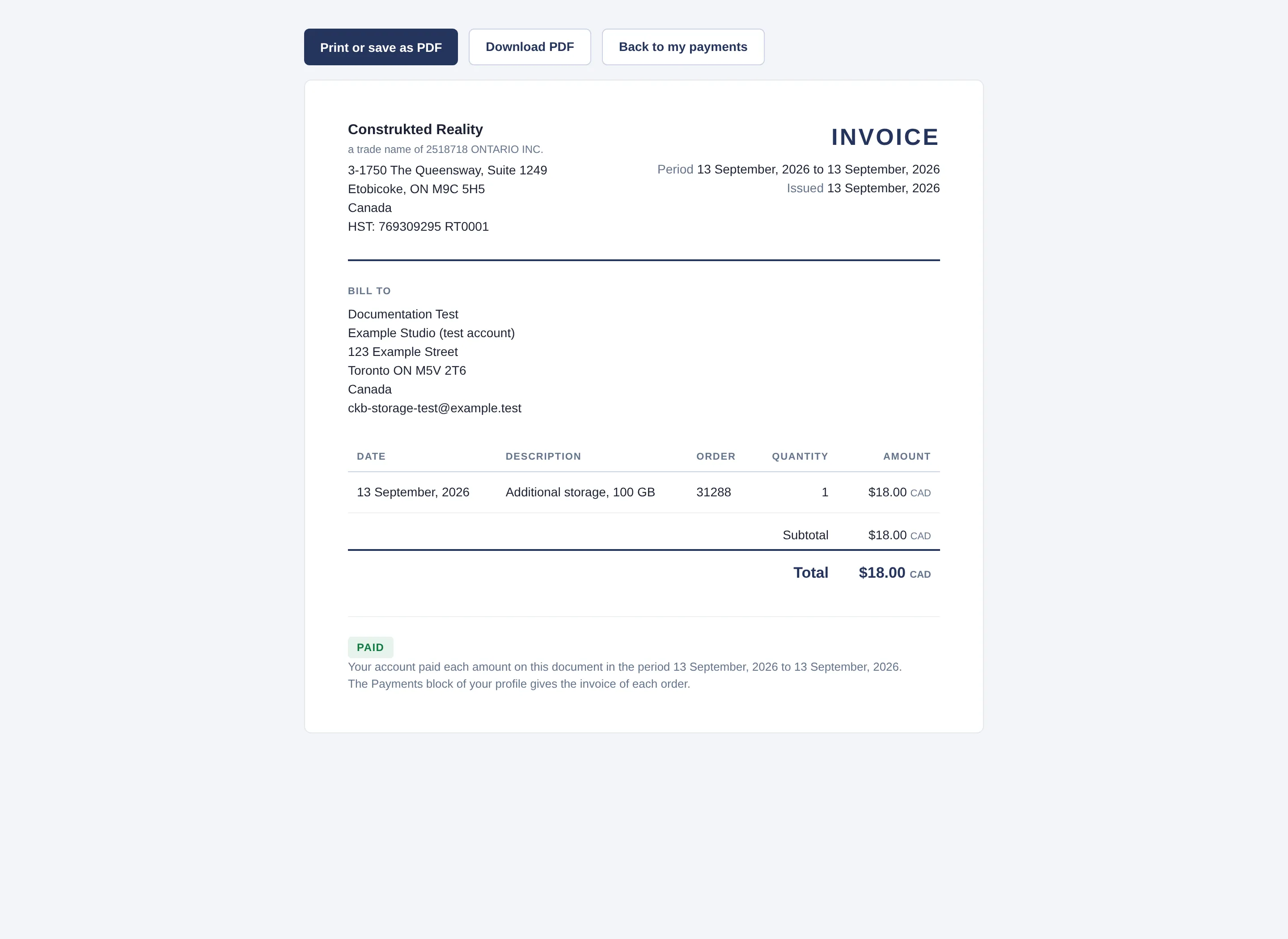
PDF exports accept up to 500 item lines. If the page asks for a shorter period, narrow the dates and export again. Paper size controls the downloaded PDF; your browser controls paper size when printing the web version. For an invoice for one specific order, contact support with its order number.
Cancel a subscription
Section titled “Cancel a subscription”- Open Manage on the subscription you want to stop.
- Choose Cancel subscription and read the confirmation.
- Confirm, then check the status and end date on the Subscription tab.
Cancelling stops renewal. Storage from a paid period remains available until that period ends. Cancelling Additional Storage leaves your Account Plan running. For an existing add-on, you can also move the storage slider to None, then select Cancel subscription.
While cancellation is pending, Reactivate subscription may be available. If an add-on is set to stop, reactivate it before changing its size. Actions depend on the subscription’s state and whether the account still has a qualifying paid plan.
Additional Storage requires a paid Account Plan. When that plan stops, switches to Free, or has a payment problem, the add-on can also stop. Don’t assume it will keep renewing independently of the plan.
What happens when my allowance falls?
Section titled “What happens when my allowance falls?”When a paid period ends or you reduce your storage, the smaller allowance applies. Uploads are refused when a new file would exceed it. A failed Account Plan payment can block uploads even when you previously had unused capacity.
If Additional Storage stops while your files exceed the remaining allowance, the Subscription tab shows a recovery warning. It counts 30 days from the recorded stop, after which the message says that data above the allowance can be deleted. Follow the deadline shown in your account or contact support. This isn’t a promise that deletion occurs automatically on day 30, or that files remain available indefinitely.
If you need help recovering original uploads after cancelling or downgrading, contact support. Recovery depends on which files are still retained.
Resolve a failed payment
Section titled “Resolve a failed payment”Follow the payment-problem notice in your account. Check or replace your payment card, then open the linked subscription to review any unpaid renewal and the payment action offered there. Confirm that the payment succeeds before expecting the allowance to return.
For stopped Additional Storage, the page can offer Buy Additional Storage. Restore a qualifying paid Account Plan first, then use that route if offered. A stopped add-on doesn’t always have a reactivation action, and changing a card alone doesn’t guarantee that its storage returns.